
Why I Use #7: iTerm2, autossh, tmux and Chrome Remote Desktop --- From the MacBook to the Machines
1531 words • 8 min read • Abstract

The prior post in this series was about coding agents. This one is about what they run inside: the terminal stack between my MacBook and the Arch Linux workstations and rack servers where the agents work. Three terminal tools, each covering a different way a session can die, and one remote desktop for when a terminal is not enough.
| Resource | Link |
|---|---|
| iTerm2 | iterm2.com |
| autossh | harding.motd.ca/autossh |
| tmux | github.com/tmux/tmux |
| Chrome Remote Desktop | remotedesktop.google.com |
| How the agents use it | AI Tools #4, Saw #7 |
| The longer timeline | TBT #13: Many Decades of Learning the Next Thing |
| The series | Why I Use: every post |
| Comments | Discord |
Still pretending to be a VT100
My timeline of tools starts its terminals row with an IBM 2741, a typewriter, and runs through the 3270 and the VT100. Everything I use today is still pretending to be the last of those. What has changed is what sits around the terminal: the connection is now something that should come back after a closed laptop lid, and the session is something that should survive the connection.
The setup
From the MacBook, I connect with autossh to an Arch Linux machine, log in as an unprivileged user (one per agent), and run tmux. One tmux window runs the agent; another is a shell prompt, or sometimes an Emacs shell (AI Tools #4). The same arrangement runs every agent, so what changes between them is the agent and not the setup.
iTerm2: the Mac end
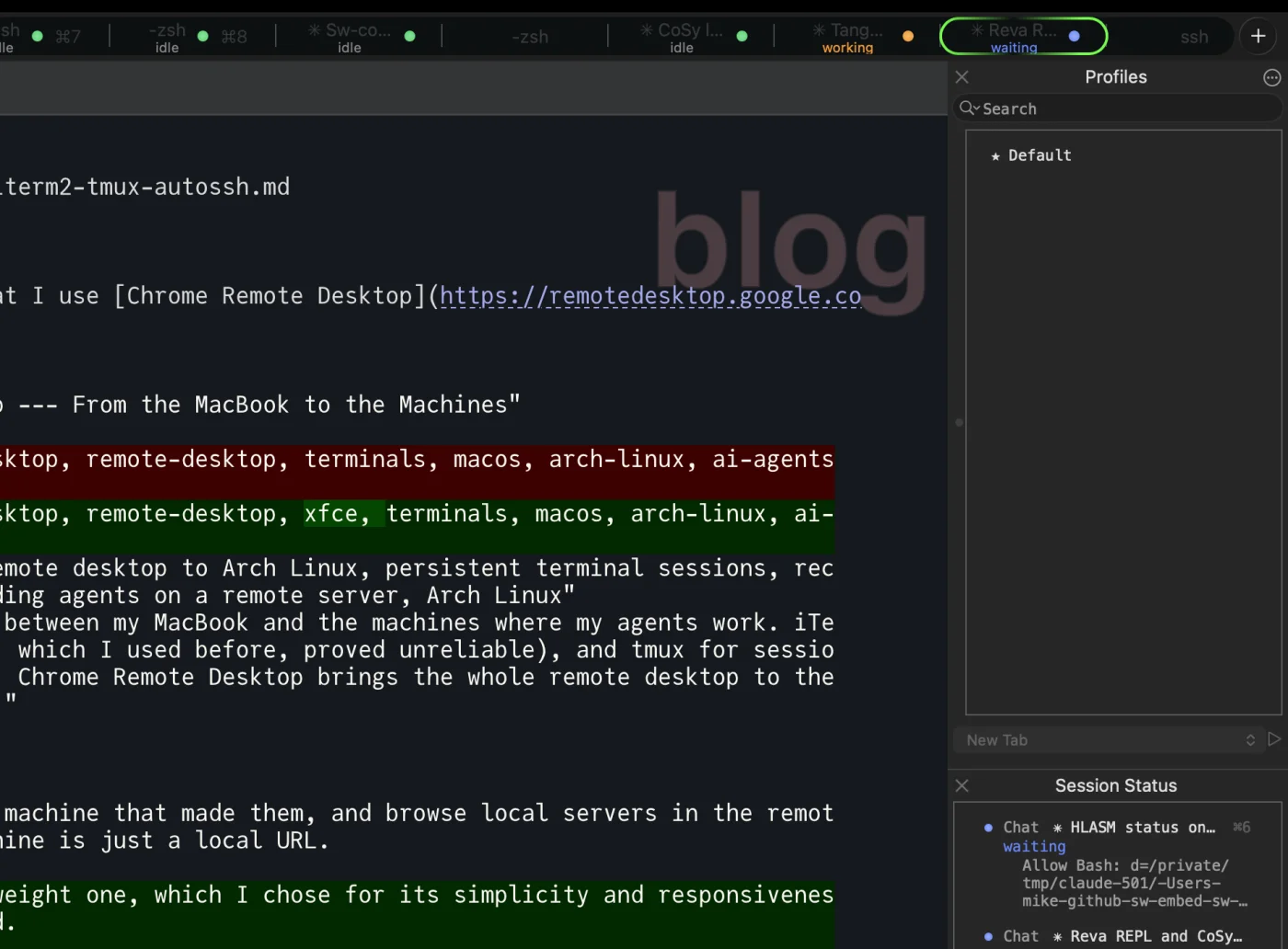
iTerm2 is the terminal I choose to use on my Macs.
Mainly I use it for its watermark, which iTerm2 calls a badge: large, faint text in the corner of each session that shows what that tab is working on. With an agent in every tab, a glance tells me which is which.
Lately there is a second reason: iTerm2 3.7 added a Claude Code integration, which shows the status of every Claude session (working, waiting or idle) on its tab.
autossh: a connection that comes back
ssh is a TCP connection: close the laptop, change Wi-Fi, or let the network drop for long enough, and it is gone. autossh starts ssh, watches it, and starts it again when it exits or stops passing traffic. It is still plain ssh, with the same keys, config and port forwards, so there is nothing new on the server.
A reconnect is not seamless: the old connection is gone and a new one takes its place. That is fine, because the work was never in the connection. It is in tmux.
I connect with a shell alias. This one is for large12:
alias mlarge12='autossh -M 0 -t large12 "tmux attach-session || tmux new-session"'
-M 0turns off autossh’s own monitoring port, so it restarts ssh whenever ssh exits.-tgives the remote command a terminal, which tmux needs.tmux attach-session || tmux new-sessionre-attaches to the session that is already running, or starts one if there is none.
So one command takes me from the Mac straight back into whatever was running, and a reconnect lands in the same place.
I used mosh, the mobile shell, before it. mosh keeps a session alive across sleep and changes of network instead of reconnecting, which is the better idea on paper. In practice it proved unreliable for me, and lately it refuses to connect from my Mac at all. Local and cloud LLMs suggested plenty of diagnostics and proposed causes that turned out to be wrong, and none of them got mosh working reliably. autossh is less clever, and it works for me, so far.
tmux: a session that survives the connection

autossh brings the connection back; tmux keeps the work alive while it is gone. Sessions live on the server, so a reboot of the MacBook, a new client, or a different machine can re-attach to the same running agent. That is what made multi-day agent runs on the Arch host practical: the agent keeps working whether or not anything is connected to it, and it can be inspected from wherever I am.
I use tmux with a config of my own, and typically with two windows: one running a coding agent, the other a shell.
I connect this way to many different users on the target machines, not just my main one. Those other Linux logins have reduced privileges: they cannot change anything on GitHub, cannot push, and cannot edit each other’s cloned repositories. Each agent works in its own login, and the worst it can do stays there.
Before tmux
Before tmux, Emacs did most of this for me. Its windows split one frame into panes, and a long-running Emacs held my buffers and shells while I came and went: emacsclient connected to that running Emacs instead of starting a new one, and TRAMP let it edit files and run shells on remote machines. I sometimes used GNU screen.
Chrome Remote Desktop: more than a terminal
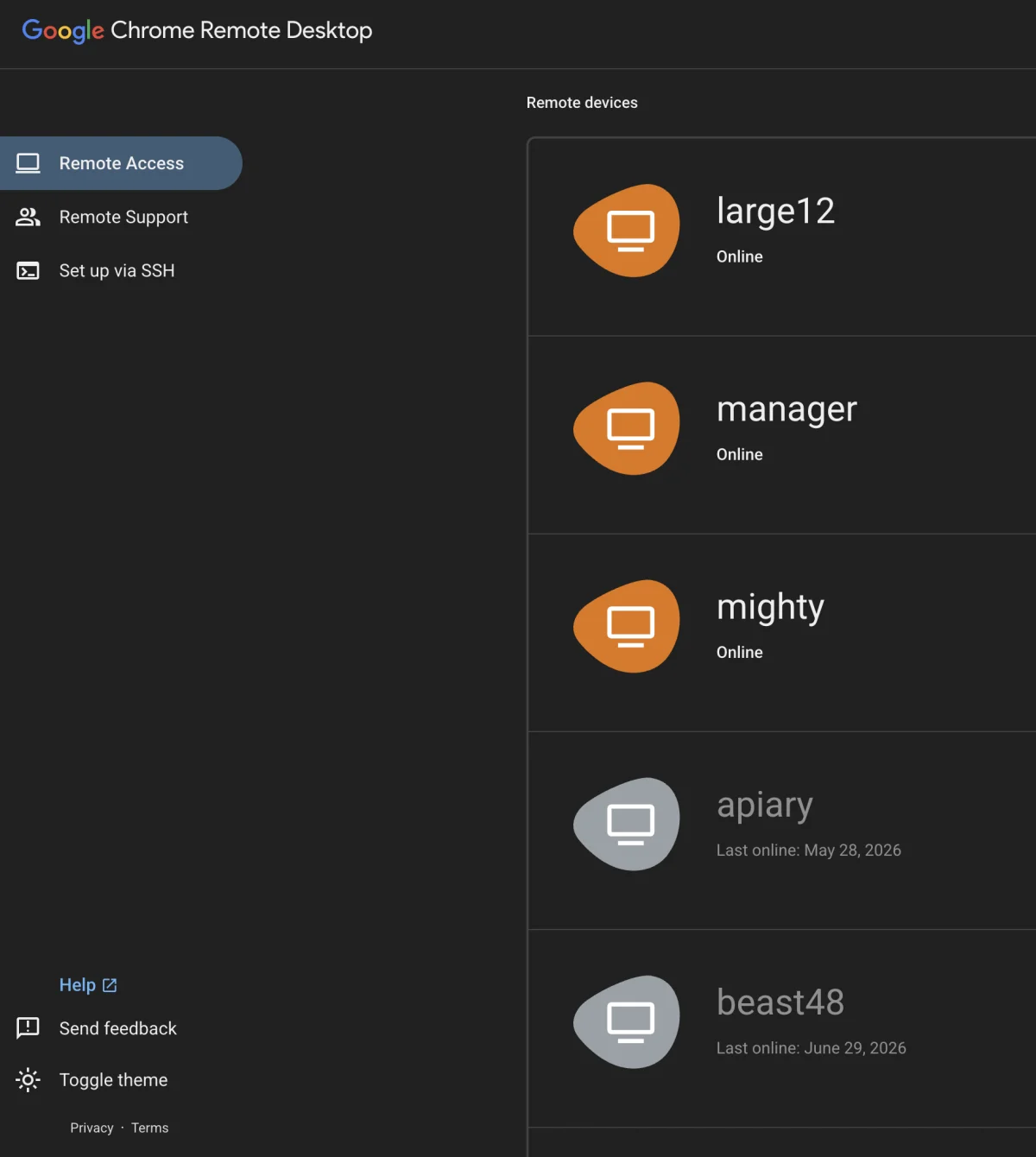
Some work needs the remote machine’s screen, not just its prompt. For that I use Chrome Remote Desktop to reach the desktops of the Arch Linux workstations and rack servers from my MacBook.
It lets me do more than the CLI can. I can preview graphics on the machine that made them, and browse local servers in the remote desktop’s own browser, where a server listening only on that machine is just a local URL.

The desktop on the other end is Xfce, a lightweight one, which I chose for its simplicity and responsiveness, and because it uses fewer resources than a heavier desktop would.
Three ways to lose a session
The terminal is still pretending to be a VT100. What has changed is everything around it: a Mac that tells me which agent needs me, a connection that comes back on its own, sessions that never noticed it was gone, and a whole desktop when a prompt is not enough. A future post in this series is about what I type at that prompt: fd, ripgrep, skim, dua and bat.
Part 7 of the Why I Use series. View all parts
Comments or questions? SW Lab Discord or YouTube @SoftwareWrighter.